WhatsApp QR Codes for Business: How to Create & Use Them
Part of WhatsApp for Business: The Complete Guide
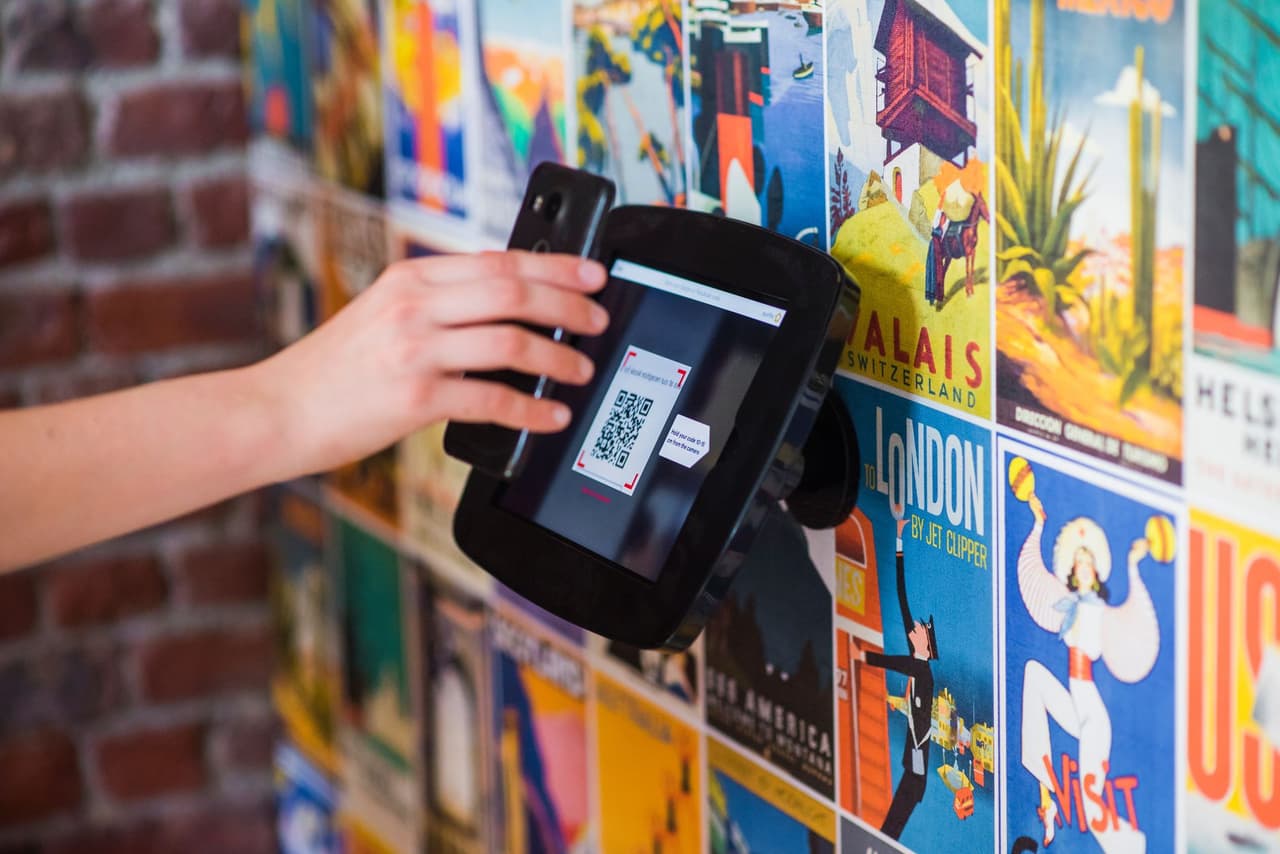
A WhatsApp QR code bridges the gap between the physical world and a WhatsApp chat. A customer standing in your shop, holding your flyer, or looking at your packaging can point their phone, scan, and instantly be messaging you — no typing your number, no searching. For any business with a physical presence, it's one of the easiest ways to turn passers-by into conversations. Here's how to create one and where to use it.
Two ways to create a WhatsApp QR code
Option 1: WhatsApp Business's built-in code (fastest)
The WhatsApp Business app has a QR code built in:
- Open WhatsApp Business → Settings → Business tools.
- Tap Short link (it includes a QR code).
- Share or download the QR code image.
When scanned, it opens a chat with your business. Simple, free, and official — but it opens a blank chat with no pre-filled message and limited styling.
Option 2: A custom code from your click-to-chat link (more flexible)
For a pre-filled message and custom design, generate a QR code from your click-to-chat link:
- Build your link:
https://wa.me/447911123456(your number, international format, no+or spaces). - Optionally add a message:
https://wa.me/447911123456?text=Hi!%20I'd%20like%20to%20order. - Paste it into any free QR code generator.
- Download the code (use a high-resolution PNG or SVG for print).
This route lets you pre-fill context ("Table for 2", "I'd like a quote") and match the code to your branding.
Where to put your WhatsApp QR code
The whole point is capturing people who are offline. Put your code everywhere they encounter your business:
- Storefront window and door — "Message us on WhatsApp" for after-hours enquiries.
- Counter and table tents — for orders, bookings, and questions.
- Menus — scan to order or reserve.
- Packaging, receipts, and stickers — for reorders, support, and reviews.
- Flyers, posters, and banners — turn print into conversations.
- Business cards — more useful than a printed number.
- Vehicle and event signage — capture interest on the move.
Pair the code with a clear call to action ("Scan to book on WhatsApp") so people know what they'll get.
Turn scans into customers
A QR code gets the conversation started — but what happens next decides whether a scan becomes a sale. Two things make the difference:
- Pre-fill useful context so you (and your system) know why they're messaging.
- Answer instantly. A scan is a moment of high intent — someone in your shop, right now, wanting to act. If they get a slow reply, that intent evaporates.
This is where a QR code and an AI receptionist are a perfect match. A customer scans the code on your table, asks a question or places an order by text or voice note, and gets an instant, accurate reply — the price, the availability, the confirmation — even if it's 11pm and you're closed. The code captures the moment; the AI closes it. Add a website button and click-to-chat links and you've covered every online and offline doorway into a chat.
A quick styling note
You can brand your QR code — colours, a logo in the centre, a frame — but keep it scannable: enough contrast, not too much distortion, and test it with several phones before printing at scale. A beautiful code nobody's phone can read is worse than a plain one that always works. And always print it large enough to scan from a comfortable distance.
The takeaway
A WhatsApp QR code turns any physical surface into a doorway to a chat. Create one in seconds from WhatsApp Business's built-in tool, or generate a custom, pre-filled code from your wa.me link. Place it wherever customers meet your business offline, pair it with a clear call to action, and — crucially — make sure the reply is instant. With an AI receptionist behind it, every scan gets answered on the spot, day or night. Try ChatMunshi free so your QR code turns scans into booked customers.
Frequently asked questions
How do I create a WhatsApp QR code?
Two ways: WhatsApp Business has a built-in QR code under Settings → Business tools → Short link / QR code, which opens a chat with you when scanned. Or generate a QR code from your click-to-chat link (https://wa.me/<number>) using any free QR generator, which lets you add a pre-filled message and style it.
Where should I put my WhatsApp QR code?
Anywhere customers are offline: your storefront window and counter, table tents and menus, packaging and receipts, flyers and posters, business cards, vehicle signage, and event stands. Each scan opens a WhatsApp chat with you instantly.
Can I add a message to my WhatsApp QR code?
Yes, if you generate the code from a wa.me link with ?text=. For example a code made from https://wa.me/447911123456?text=Table%20for%202 opens WhatsApp with that message pre-filled. The built-in WhatsApp Business QR code opens a blank chat.
Are WhatsApp QR codes free?
Yes. WhatsApp Business's built-in QR code is free, and generating one from your wa.me link with a free QR generator costs nothing. You only pay if you use a premium generator for advanced styling or analytics.